How to Convert HEIC to JPEG at Scale
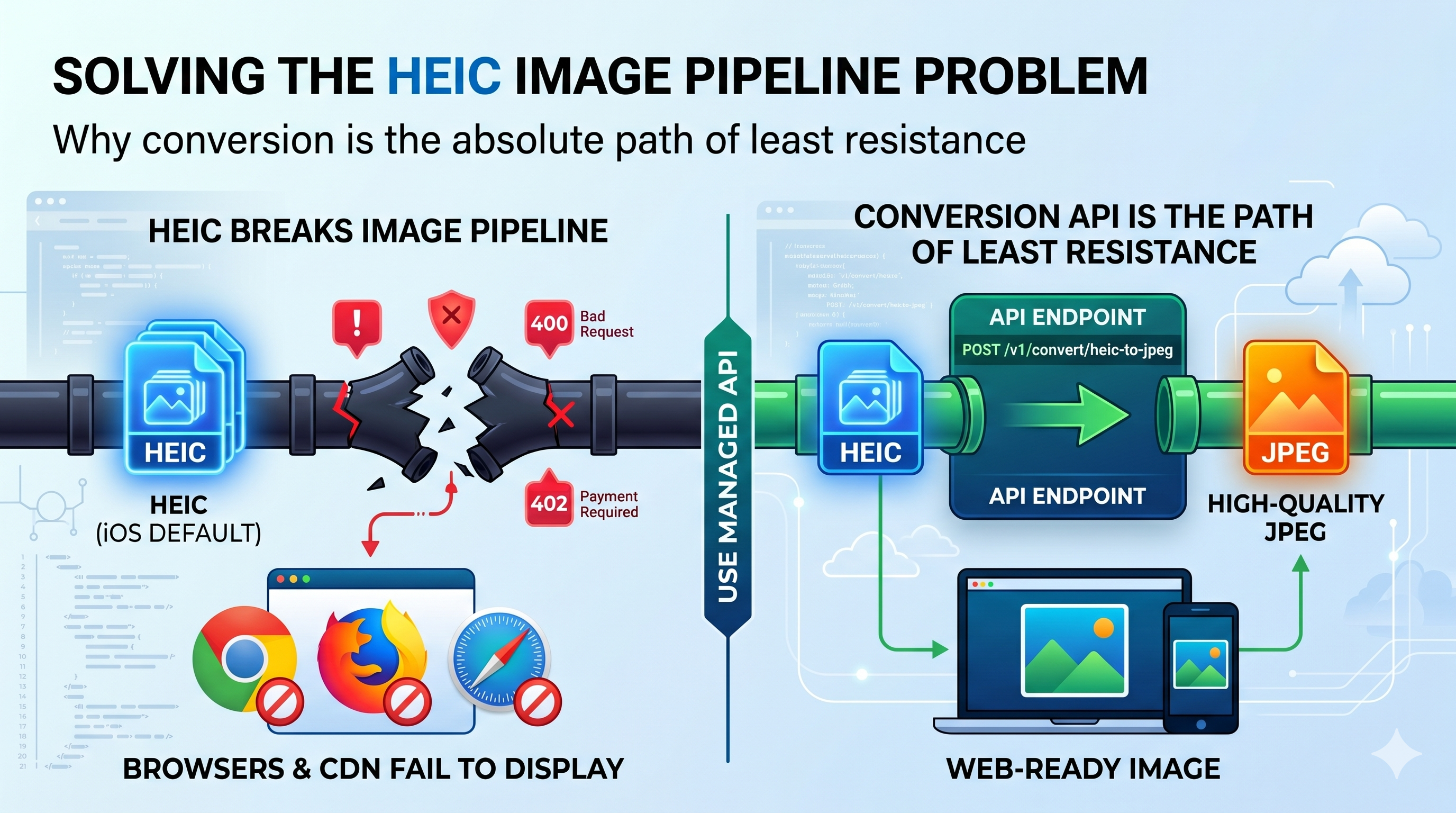
Apple made HEIC the default camera format with iOS 11. This things makes files smaller than JPEG without losing quality, which saves a lot of space on your phone storage. But, the moment a user uploads a photo from their camera roll, the whole process of handling the image falls apart.
Most of the web servers, image processing libraries, and storage pipelines don't handle HEIC natively. For instance, Node's sharp library added HEIC support in version 0.32. However, it requires libvips to be compiled with HEIF support. The problem is that support isn't available in most managed hosting environments. Python's Pillow still also doesn't support HEIC files. You have to install separate system-level dependencies. Instead of fighting with your server's native library stack, the absolute path of least resistance is using a conversion API.
Why HEIC breaks image pipeline
HEIC (High Efficiency Image Container) files use HEVC compression, which is the exact same codec used for H.265 video. Browsers can't display HEIC images directly because they are based on video technology. Chrome, Firefox, and older versions of Safari on non-Apple devices won't show HEIC images unless you convert them first. CDNs that create thumbnails or change images often breaks, causes an error, or removes the original image.
The real issue isn't uploading one HEIC file. It's that iOS users create HEIC files by default and newer devices and macOS screenshots can also produce HEIC files. If your product accepts user-uploaded images, such as profile photos, property listings, product shots, or document scans- many of them will be in HEIC format. Converting a HEIC files at a time works fine when you don't get many uploads. However, as your platform grows, dealing with these uploads becomes a problem.
It's important to mention that some hosting environments look like they support HEIC conversions through ImageMagick. but here's the catch. It only works if you manually install and compile libheif delegate, which is not available by default on most shared hosting, AWS Lambda, Vercel, or Fly.io deployments. If your platform uses one of those environments, a managed API is the only practical path.
The endpoint: what it does and what it accepts
The heic-to-jpeg endpoint is really useful because it accepts both .heic and .heif files. This endpoint will give you a high-quality JPEG. It does this by using pillow-heif to decode the heic-to-jpeg files. Then, it uses Pillow encode the JPEG. Output quality is set to maximum and is not configurable- the endpoint always produces the highest quality output. If the HEIC image has transparent layers, the endpoint automatically blends it onto a clean white background.
Endpoint: POST /v1/convert/heic-to-jpeg
Content Type: multipart/form-data
Accepted input: .heic or .heif files
The three request parameters:
Parameter | Type | Required | Default | Description |
|---|---|---|---|---|
file | file | Yes | - | The .heic or .heif file to convert |
output_filename | string | No | Input filename | Custom output filename- .jpeg extension added automatically |
direct_download | boolean | No | true | when true, returns raw image bytes. When false, returns JSON with a presigned download URL. |
Authentication takes either a private API key or a JWT token from a public key:
X-API-KEY: sk_live_your_private_keyOr:
Authorization: Bearer <jwt_token>Smallest working call in cURL:
curl -X POST https://api.enconvert.com/v1/convert/heic-to-jpeg \
  -H "X-API-Key: sk_live_your_private_key" \
  -F "file= @photo.heic"
Full parameter reference lives in the EnConvert docs.
Same in Python:
import requests

with open("photo.heic", "rb") as f:
   response= requests.post(
        "https://api.enconvert.com/v1/convert/heic-to-jpeg",
        headers= {"X-API-Key": "sk_live_your_private_key"},
        files= {"file": ("photo.heic", f)}
   )

with open("photo.jpeg", "wb") as out:
    out.write(response.content)
By default, the direct_download is set to true. This means the API gives you the raw JPEG bytes in the response body, allowing you to write them to your storage. It saves time because you do not need to download them. If you need a presigned URL, set download to false instead.
Scaling with batch processing
Single-file calls handle your user-uploads perfectly. However, if you need to run a back-fill job- like migrating an entire library of old HEIC files to JPEG- Enconvert's batch processing lets you submit multiple files all at once and track the progress using a webhook or polling.
Worth flagging a couple of things up front: Batch processing requires a private API key, which isn't available on the Free plan. It kicks in from Starter or upward. Additionally, the system automatically pre-checks your batch count against your monthly quota before the processing begins. A batch that would push over your limit fails at submission, not halfway through.
How the process works: submit the batch and get back a batch_id, then poll GET /v1/convert/batch/{batch_id} to have a look on progress. The batch status endpoint gives you a per-item breakdown with individual download URLs as each file finishes.
Python example with polling, from the docs:
import requests
import time

response= requests.post(
    "https://api.enconvert.com/v1/convert/url-to-pdf",
    headers= {"X-API-Key": "sk_live_your_private_key"},
    json={
        "url": [
            "https://example.com/page-1",
            "https://example.com/page-2",
            "https://example.com/page-3"
        ]
    }
)

data= response.json()
batch_id= data["batch_id"]

while True:
    status= requests.get(
         f"https://api.enconvert.com/v1/convert/batch/{batch_id}",
         headers= {"X-API-Key": "sk_libe_your_private_key"}
    ).json()

    print(f"Status: {status['status']} ({status['completed']}/{status['total']})")

    if status["status"] in ("completed", "partial", "failed"):
         for item in status["items"]:
             if item["download_url"]:
                 print(f" {item['source_url']} -> {item['download_url']}")
         break
    time.sleep(5)
The batch status response has three possible end states: completed (all succeeded), partial (some failed), and failed (all failed). If you want all converted files in one ZIP archive, you need to set output_format true in the request. The ZIP feature only works if you have Pro plans or higher.
You can give a callback_url in your request if you want to use webhooks instead of polling. When each conversion finishes, a webhook will be sent to you. The webhook will be sent within 30-second. There are no retries if it fails to deliver.
Error codes worth knowing
There are six status codes that the endpoint return:
Status | Condition |
|---|---|
400 Bad Request | File is not a .heic or .heif file |
400 Bad Request | Image conversion failed (corrupt or unsupported file) |
401 Unauthorized | Missing or invalid API key/ JWT token |
402 Payment Required | Monthly conversion limit reached |
402 Payment Required | Storage limit reached |
413 Payload Too Large | File exceeds plan's maximum file size |
A quick map by what the job actually looks like:
One-off user upload in a live product: a single-file call with direct_download: true is perfect for real-time uploads. It returns raw JPEG bytes instantly to your backend. Any paid plan from the Starter tier upward easily covers this.
Backfill job on an existing image library, up to 20,000 files: The Starter plan at $19 per month is your best bet. Batch processing available, asynchronous mode on, polling for completion. ZIP output is not available on Starter, so you can use individual download URLs per file instead.
Backfill job past 20,000 files, or needing ZIP output and webhook callbacks: Step up to the Pro plan at $49 per month if you're migrating a massive library, need your files bundled up into a single ZIP archive, or prefer webhook callbacks over constant polling. It includes 10,000 conversions and unlocks both ZIP and webhook features.
Large files from iPhone Pro with ProRAW: You should check how big your files are before you choose a plan. The limits vary significantly by tier: the Free plan only lets you send files that are 5MB or smaller, the Starter plan lets you send files that are up to 15MB, the Pro plan is better because it lets you send files that are up to 50MB, and the Business plan lets you send files that are up to 150MB.
Testing output quality on a file before writing any code. You can use the playground for this. The playground lets you run conversions without creating an account.
Plan limits at a glance
Plan | Free | Starter | Pro | Business |
|---|---|---|---|---|
Monthly conversion | 100 | 2,000 | 10,000 | 50,000 |
Max file size | 5 MB | 15 MB | 50 MB | 150 MB |
Batch processing | No | Yes | Yes | Yes |
ZIP output bundling | No | No | Yes | Yes |
Webhook callbacks | No | No | Yes | Yes |
Async mode | No | Yes | Yes | Yes |
All paid plans include a 14-day free trial. No credit card required for the free tier.
FAQ
Does the endpoint support both .heic and .heif?
Yes. The heic-to-jpeg endpoint can handle both .heic and .heif files. Apple uses .heic for images and .heif for sequences of images. Treat them identically in your upload detection logic- the endpoint handles both without any extra configuration.
Can I control the output quality?
No. Output quality is set to maximum (100) and is not configurable on this endpoint. If the HEIC image has an alpha channel, transparent areas are composited onto a white background automatically before encoding.
Which plans support batch processing?
Batch processing is available from Starter upward. The Free plan doesn't support it. Zip output bundling and webhook callbacks unlock at Pro. The full plan breakdown is on the pricing page.
What happens if my batch exceeds my monthly quota?
The only honest answer is: it fails at submission, not mid-job. The entire batch count is checked against your remaining monthly quota before any processing begins. A batch of 500 files against a plan with 200 conversions remaining returns a "402 Payment Required" immediately- nothing gets processed and no conversion are deducted.
Is the free tier usable for production?
Realistically, no. 100 conversions a month is an evaluation budget- enough to confirm output quality on a representative sample of real files, not enough to run a live upload pipeline. The $19 Starter plan is the practical floor for anything handling real user uploads in production.
Can I use this endpoint client-side without exposing my API key?
Yes. Enconvert supports domain-locked public keys that are safe for browser-side use. Restrict them to your domain and the specific endpoints you need from the dashboard. For a drop-in conversion tool on any webpage, the embeddable widget requires no backend code at all.
Starting Points
The answer to "which setup fits my pipeline" is usually the one that handles a real life correctly on the first request, not the one with the most options on the plan comparison table.
if the job is a one-time backfill, the Free tier's 100 conversions covers a test run on a representative sample. Once the output looks right, Starter at $19 open batch processing for up to 2,000 conversions a month- enough for most migration jobs. If the library is larger or you need ZIP output and webhooks, the practical next step is Pro at $49 for 10,000.
If HEIC files are coming in through an upload you can easily connect the Python or Node.js example above, to your existing upload handler with just a few lines of code. The direct_download: true default means the response is the raw JPEG bytes- no second request, no presigned URL to chase down, just write the content directly to storage.
The EnConvert playground converts a real HEIC file in the browser without an account. Drop one in and confirm the output before writing a line of integration code.